
How to Change Phones Without Losing Two-Factor Authentication
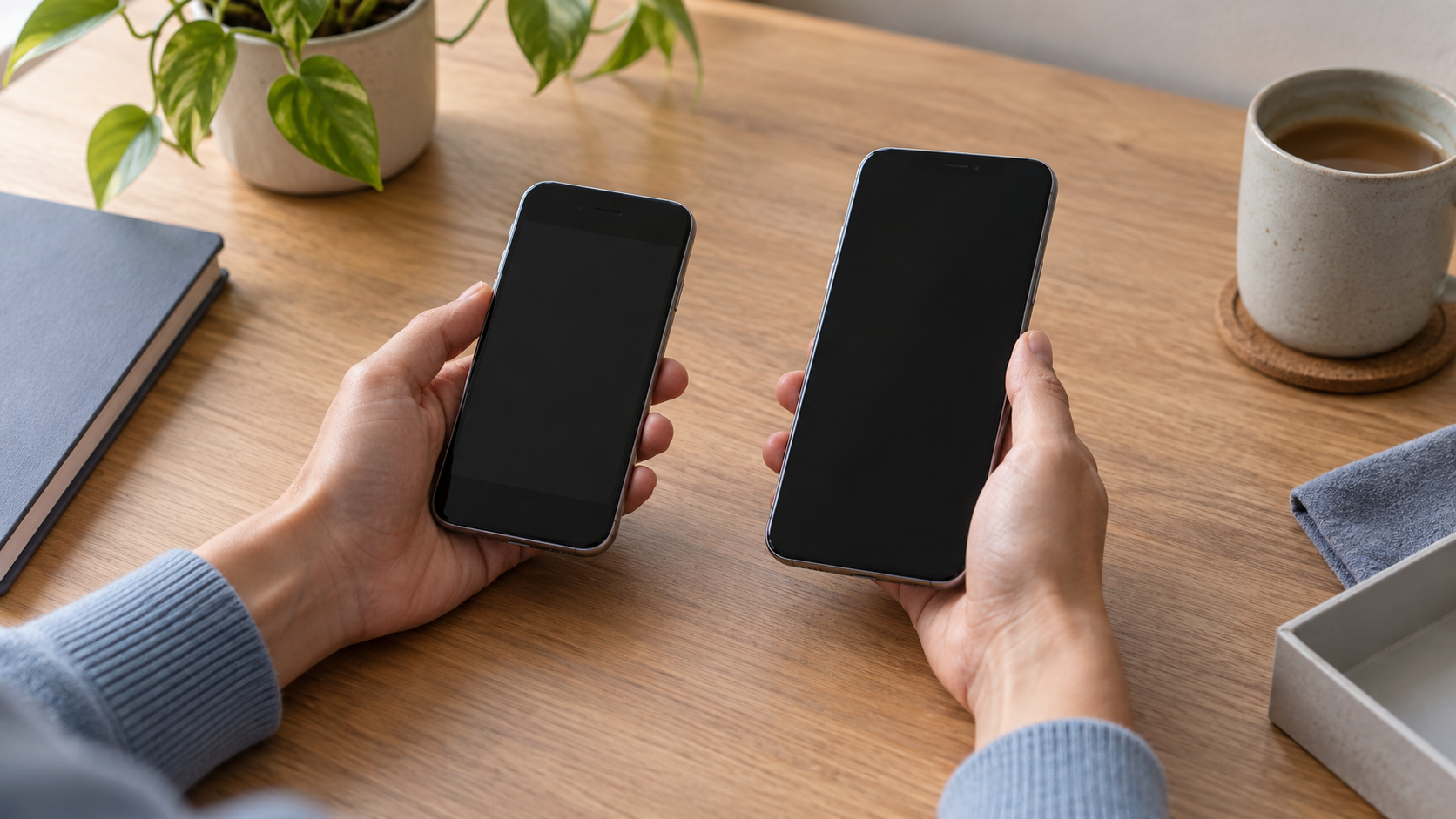
A new phone can copy your photos, contacts, and apps while leaving an important part of your digital life behind: the second step you use to sign in. An authenticator app may appear on the new device without its accounts. A push notification may still go to the old phone. A text-message code may depend on a number that has not moved yet.
The safest approach is to treat the change as a series of account checks, not one device transfer. Keep the old phone working, identify how each important account verifies you, set up the new phone, and prove you can sign in before erasing anything.
Make an Account List Before You Start
While the old phone still works, list the accounts whose loss would cause the most trouble. Start with your primary email, password manager, Apple or Google account, banking and payment accounts, work account, and mobile carrier. Add other services where you use an authenticator app or approve sign-in prompts.
For each account, record the type of second step you use: an app-generated code, an approval notification, a passkey, a security key, or a text or call to your number. Record the account name and the method, not the password, code, or QR setup secret in a casual note.
Check which account protects the others. If your email is needed to reset a shopping account, and your email's recovery depends on the old phone, solve the email access problem first. Review the guidance on storing account recovery codes safely before you rely on a code you have never located.
Understand What the Phone Transfer Can and Cannot Do
An authenticator app can create short-lived codes from a secret registered with each service. Whether those secrets reach your new phone depends on the app and how it was configured. Some apps sync or restore them; others require an explicit export from the old device or fresh enrollment at each service. Seeing the app icon after restoring a phone does not prove that its codes moved.
Approval prompts are a separate case. A service may register a particular device to receive a notification and require you to approve it there. Restoring the authenticator app may bring back an account name without restoring that device registration. Work and school accounts may also require an administrator to approve a new device.
A phone number is different again. Moving the number may restore text or call delivery, but it does not transfer app-generated codes or approval registrations. Do not assume a working text message means every second step is ready. If you are changing your number as well as your handset, update each service's recovery number deliberately.
Passkeys may be synchronized by a credential provider or bound to one device. If you also use them, follow the separate guide to setting up passkeys without losing access. Check where each passkey lives rather than assuming every credential travels with the phone backup.
Secure an Independent Way Back In
Before moving anything, open the security settings of your most important accounts through their known apps or websites. Check which alternative sign-in and recovery methods are already available. A spare hardware security key, a second enrolled authenticator, a trusted device, or recovery codes can help, depending on the service.
Do not count a method until you have verified it works for the right account. If you have recovery codes, confirm that they are current and stored somewhere you can reach without the old phone or the account they protect. Never send codes to yourself in ordinary email or leave the only copy in an unprotected photo gallery.
Keep at least one signed-in session open on a trusted device during the move. It may let you update security settings if a new-phone test fails. An open session is a useful safety net, but it is not a permanent recovery plan: services can end sessions or require fresh verification for sensitive changes.
Move Authenticator Codes Carefully
Open your authenticator app on the old phone and check its current transfer or backup instructions. The exact controls vary by app and can change. If it offers synchronization, confirm which account is providing it and whether the new phone is signed into that same account. If it offers export and import, follow its instructions while you still have both devices. Treat any transfer QR code as a secret: someone who copies it may be able to generate your codes.
Do not assume a backup restores every feature. For example, Microsoft's current guidance distinguishes restored one-time codes from work accounts and passwordless registrations that need further sign-in. Its backup also does not move between iPhone and Android. Google Authenticator can sync codes when signed into a Google Account and offers a manual transfer route when used without one. Those differences are reasons to inspect your own app's settings rather than follow a generic phone-cloning promise.
If your app has no suitable transfer path, use each service's security settings to add the new authenticator or replace the old one. Some services allow two active authenticators; others invalidate the earlier setup during replacement. Complete one account at a time and follow the service's confirmation step. If a QR code appears, scan it only into the authenticator you intend to keep.
Re-register Approval Prompts and Other Devices
For accounts that ask you to tap Approve rather than type a code, look for registered devices or authentication methods in the account's security settings. Add the new phone using the service's supported process, then make a fresh sign-in attempt and confirm the prompt reaches it.
Some work or school accounts restrict self-service changes. Contact your administrator before retiring the old device if the new registration is blocked. Do not repeatedly approve unexplained prompts while testing; initiate each sign-in yourself and check that the request matches it.
If you use a security key, test that its connection and required PIN work with the new phone. If you use a passkey stored on a particular device, test the intended new-phone sign-in route separately. These methods can coexist with an authenticator app, but none is automatically a copy of the others.
Test Access Before Erasing the Old Phone
Open a private browser window on a trusted device, visit each important service directly, and sign in to the existing account. Confirm the new phone supplies the expected code or receives the approval prompt. Check that you land in the right account; accidentally creating a fresh account does not verify the original one.
Test email and your password manager first, then banking, cloud storage, work services, and the rest of your list. A code visible in an app is a promising sign, but a successful sign-in proves more. If a service offers multiple methods, note which one the test actually used so that a text-message fallback does not hide a broken authenticator transfer.
If a test fails, stop and keep the old device intact. Check whether the new app has the correct account, whether the phone's date and time are set automatically, and whether the service needs a separate device registration. Use an already-tested alternative method or the service's official recovery process if necessary. Avoid disabling two-factor authentication merely to get through the move.
Retire the Old Phone Only After the Checks Pass
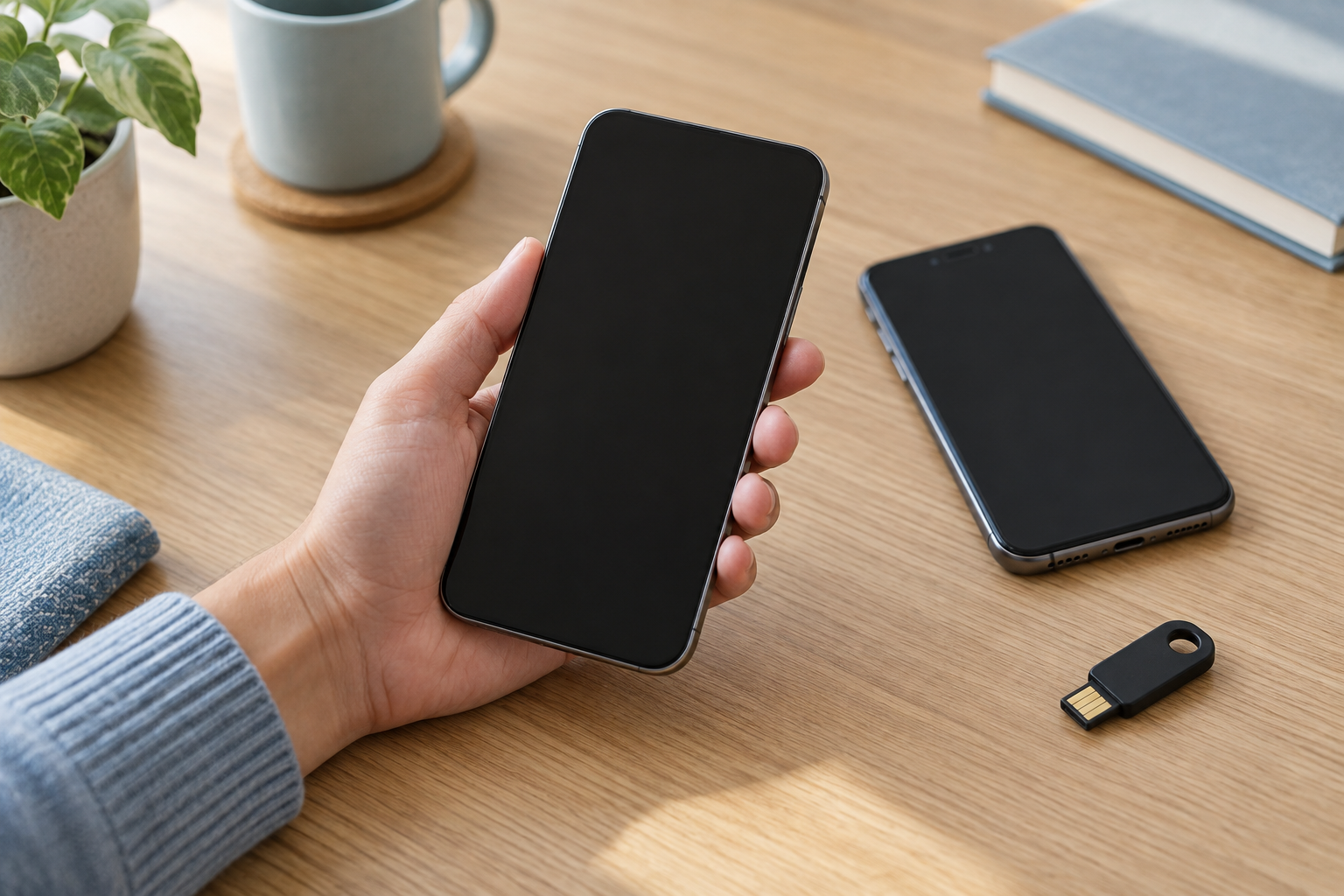
Once every important account works, review its list of trusted or registered devices. Remove the old phone when you no longer need it, making sure you are removing the intended entry. Signing out an old device can also end a useful session, so do this after the new-phone tests.
Check the carrier number, recovery email, and backup methods on your most important accounts. Replace expired recovery codes if the service regenerated them during the change, and store the new set securely. If you moved between phone ecosystems, pay particular attention to credentials and backups tied to the previous provider.
Only then prepare the old handset for sale, recycling, or storage. Follow the steps for securely disposing of an old phone or computer, including signing out of device services and erasing local data when appropriate. Removing the old phone from an account and wiping the physical device are separate tasks; complete both deliberately.
If the Old Phone Is Already Gone
Start with methods you set up earlier: a spare security key, recovery code, another trusted device, or an available text or call option. Use the service's own sign-in recovery flow, reached directly through its known app or website. The available choices differ by service and account policy.
If a work account is involved, ask your administrator to reset or re-register its authentication method. For a personal account, recovery may take time and require proof of ownership. Be wary of anyone who claims they can bypass the provider's process for a fee.
Once access is restored, add a tested alternative method so that the next phone loss is less disruptive. If the phone was stolen rather than replaced, review account activity and sessions as well. The guide on what to do if your email account is hacked covers the broader checks when you see signs of unauthorized access.
The sequence is simple: inventory, prepare recovery, move each method, test a real sign-in, then retire the old device. The important part is keeping those steps in that order.