
Passkeys Explained: How to Set Them Up Without Losing Access

A passkey lets you sign in with a credential stored on your device or in a credential manager, usually unlocked with your fingerprint, face, or PIN. You do not have to remember another password or copy a code into the website.
The practical challenge is knowing where that credential lives and what happens when your usual device is unavailable. A setup that feels effortless today should still work after a phone replacement, a broken laptop, or a lost security key.
Start with one account, choose the storage location deliberately, and test both normal sign-in and an alternative route before changing anything else.
What a Passkey Actually Does
When you create a passkey, the service registers a public key for your account. Your device or passkey provider protects the corresponding private key. During sign-in, that private key proves you have the credential without sending the secret itself to the website.
Your fingerprint or face unlock authorizes that operation locally. The website does not receive your fingerprint or a photograph of your face. A supported device PIN can serve the same local verification purpose; biometrics are not mandatory.
Passkeys also check which service is requesting authentication. A lookalike sign-in page on a different domain cannot simply collect a reusable passkey as it could collect a typed password. This is what makes passkeys resistant to ordinary credential phishing.
That protection has boundaries. A compromised device or a stolen signed-in session can still expose an account. A scammer may also target an alternative login method or the account's recovery process. Continue updating devices and treating unexpected requests carefully.
Choose Where Your Passkeys Will Live
The storage choice affects convenience and recovery. Read the creation prompt instead of automatically accepting whichever provider appears first.
Synced passkeys
A synced passkey is stored through a provider that makes it available on compatible devices associated with your account. Apple uses iCloud Keychain for its synced passkeys. Google Password Manager also supports encrypted passkey synchronization.
This can make replacing a device easier, but access still depends on your provider's supported devices and recovery requirements. Being signed into an account does not mean every browser or device will immediately offer every passkey.
Check which provider you are using, how you unlock it on another device, and what recovery information it requires. Google Password Manager, for example, may require its own PIN or an Android screen-lock PIN to unlock existing passkeys.
Device-bound passkeys
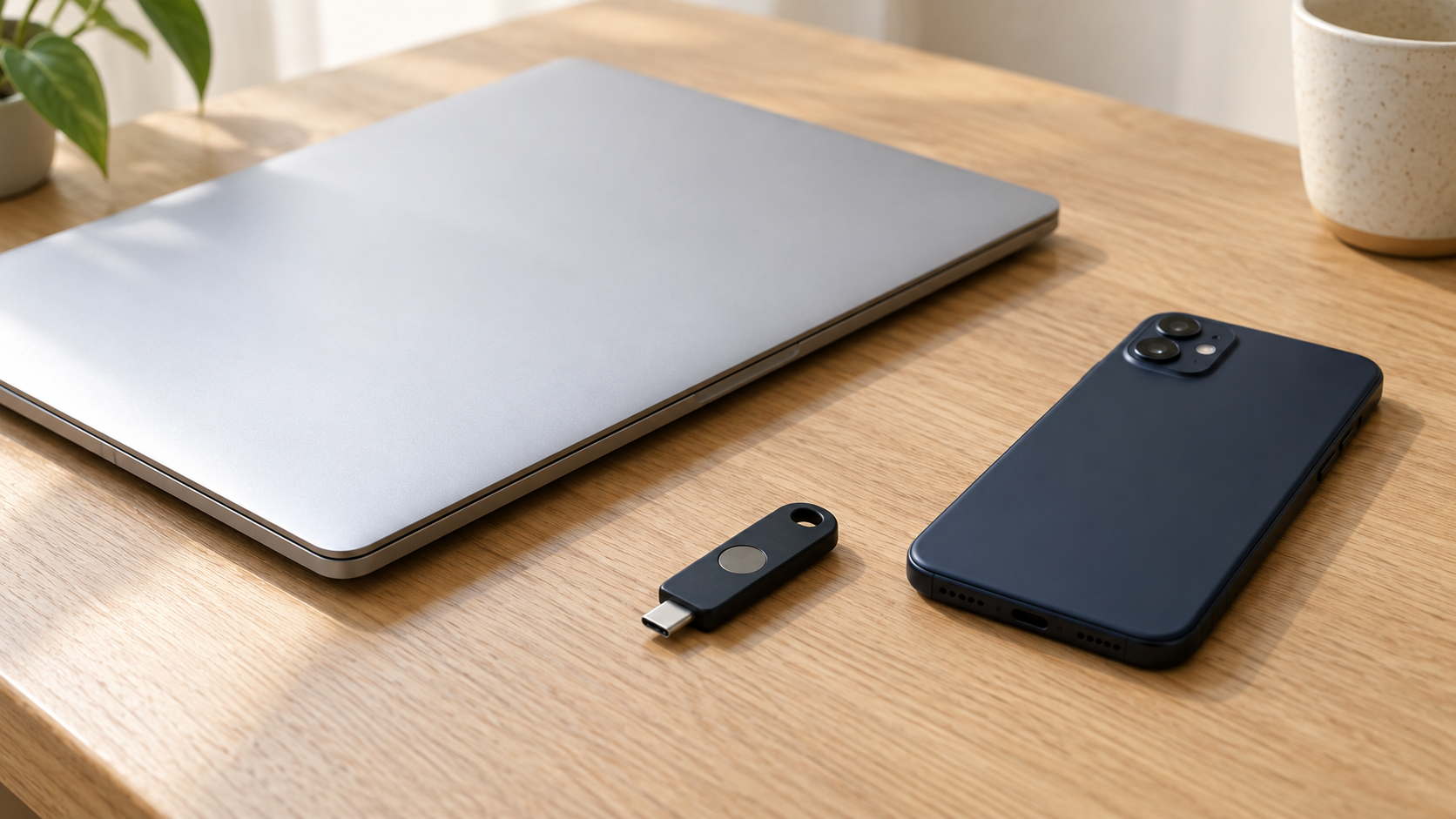
A device-bound passkey stays on a particular device or hardware security key. Losing that device means losing access to that copy of the credential.
A compatible security key can provide an alternative that does not depend on your normal phone. It must be registered with each account where you want to use it. Buying a spare key and putting it away without enrollment does not create a backup login.
For work accounts, follow your organization's approved storage policy. Personal synchronization services may be inappropriate or unavailable for managed credentials.
Create Your First Passkey Deliberately
Choose an account you can currently access and whose recovery options you understand. Use an updated personal device with a strong screen lock. Avoid saving personal passkeys on shared computers or someone else's phone.
Open the service through its known app or website. Find the security or sign-in settings, then look for an option to add a passkey. Confirm the account identity before continuing, especially if you use separate personal and work accounts.
Read the device's save prompt. It may offer a credential manager, local device storage, another device, or a security key. Select the destination you planned to use and complete the local verification.
If the service allows a label, use a recognizable description such as the provider or purpose. Record where the passkey was saved, without recording device PINs or other secrets in ordinary notes. Keep the existing session open for the next step.
Test a Real Sign-In
Open a separate private browser window on a trusted device and visit the service directly. Choose the passkey option, select the correct account, and complete the prompt.
Check that you land in the expected account with the right files, profile, or settings. An already-open tab does not prove the new credential works, and accidentally creating a second account does not verify access to the first.
Next, test from another device you expect to use. If the passkey is synced, confirm the intended provider offers it there. If you use a security key, test its connection and PIN on that device.
Some sign-in flows let a nearby phone authenticate a session on a computer, often through a QR code and Bluetooth proximity check. That is different from storing the passkey on the computer. Only approve a request you initiated, and read which service and account it concerns.
If the test fails, keep your working session and investigate compatibility or provider settings. Do not delete your existing login methods to force the new one to work.
Build an Independent Recovery Route
Think through a concrete failure: your phone is unavailable and you cannot unlock it. What will you use to reach your email and your passkey provider?
A synced copy on another trusted device may solve a lost-phone problem. It may not solve losing access to the provider account itself. Review that account's recovery process as well as the recovery options for each important service.
Where supported, register another passkey on a separate security key or another approved provider. Test it, then store the spare securely away from the bag or device you use every day. Two credentials carried together can disappear in the same incident.
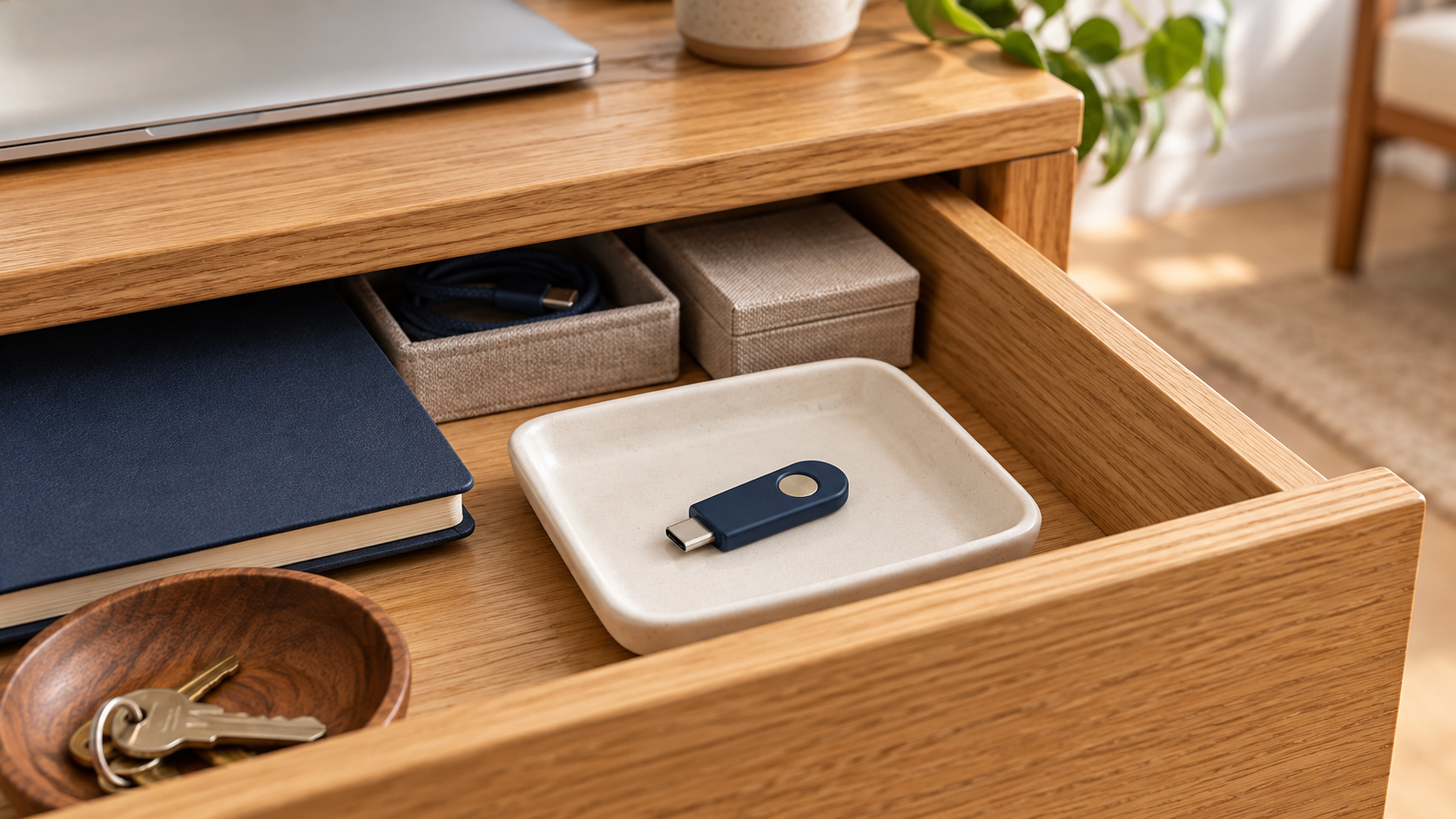
If the service offers recovery codes, understand what they restore and keep them protected. Follow the guide to storing account recovery codes safely rather than leaving your only copy inside the account you might lose.
You do not need to simulate a full lockout. Verify alternative sign-in while retaining access, read the recovery requirements, and make sure the necessary information is actually available.
Review the Login Methods That Remain
Creating a passkey does not automatically remove every password, text-message code, or recovery option. Google explicitly preserves existing authentication and recovery factors when a passkey is added. Other services have their own rules.
Inspect the account's security settings after setup. If a password remains usable, keep it unique and protected. Retain appropriate two-factor authentication for password-based sign-ins.
A passkey sign-in may not ask for a separate code because possession of the credential and local user verification already provide the required checks. That does not mean you should disable protection for alternative routes.
If the service supports removing password sign-in, consider that only after testing your passkeys and understanding recovery. Do not assume that deleting a password from your password manager removes it from the website.
Replace Devices Without Breaking Access
Before erasing or trading in a device, sign in successfully from its replacement. Confirm the passkeys you need are available, or register new ones while the old device still works.
Review the service's list of registered passkeys and remove credentials you no longer intend to use. Also review storage in the credential manager. Removing an entry from the website and deleting a stored credential can be separate actions; Microsoft documents both steps for work or school accounts.
Be particularly careful with synced entries. Deleting a synced passkey may remove it across your provider's devices, rather than merely disconnecting one old phone. Read the confirmation and preserve a tested alternative before proceeding.
Then complete the broader process for securely disposing of an old phone or computer, including account sign-out and device erasure. Credential housekeeping alone does not remove personal files or active sessions.
A Short Passkey Setup Checklist
Before calling an account ready, confirm that:
- You know which provider or device stores the passkey.
- A fresh passkey sign-in opens the correct account.
- The devices you actually use support your chosen setup.
- A tested alternative remains available if your main device is lost.
- Recovery information is protected and reachable independently.
- Remaining passwords and recovery methods still have appropriate protection.
Begin with one account and complete the whole process. Once you can explain where its passkey lives, demonstrate that it works, and identify a reliable way back in, repeat the same approach for the next account.