
How to Secure Your Printer on a Home Network
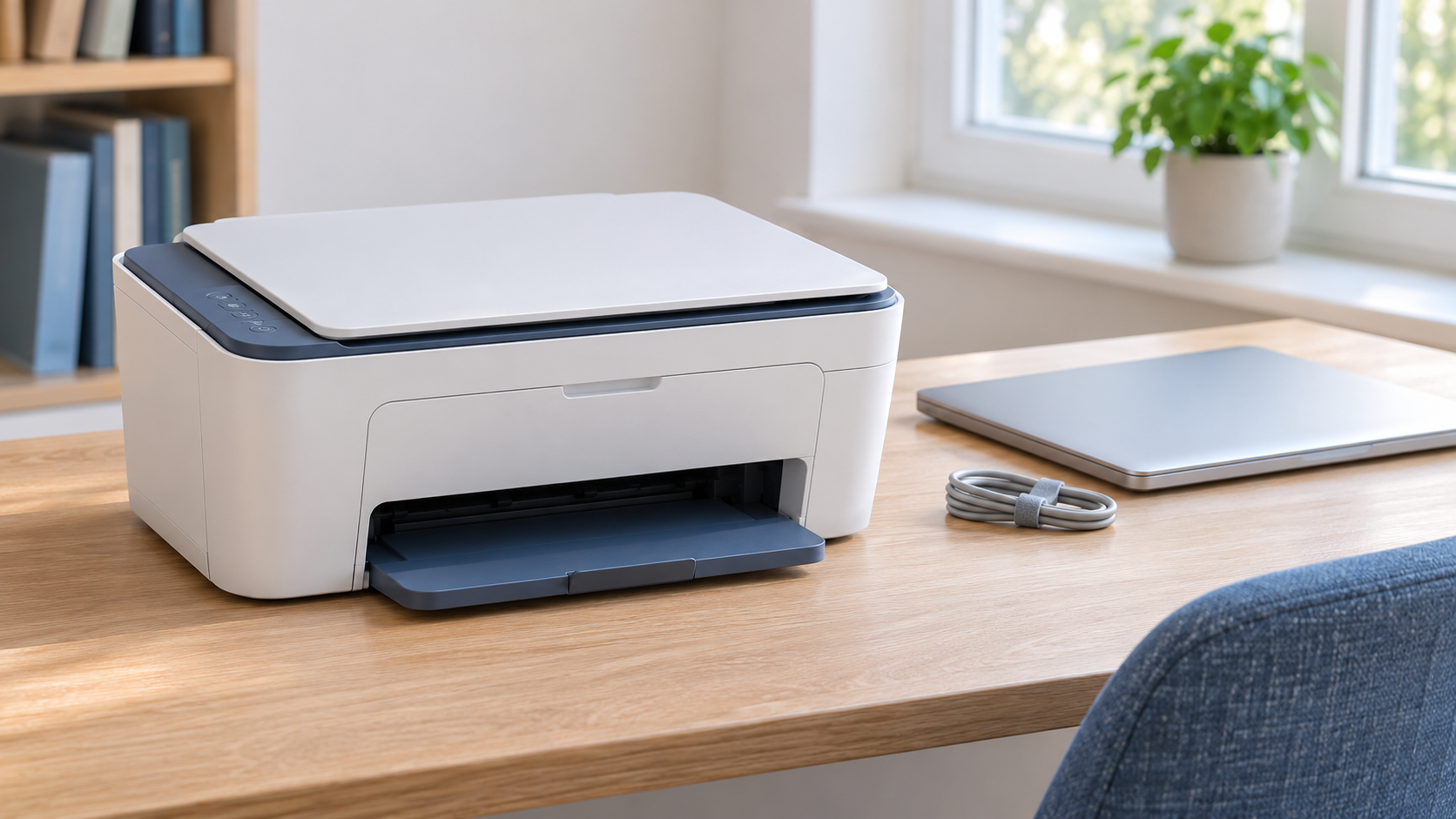
Start by updating the printer, protecting its administrator settings, and turning off connection methods you do not use. Keep it behind your router's firewall, then test that the household devices that need it can still print and scan.
A printer is easy to overlook because its most visible job ends with paper in a tray. A networked model also runs software, accepts connections, and may connect to online services. A multifunction device can have saved scan destinations and document storage as well. The useful question is which of those capabilities your household actually needs.
Identify the Model and Update Its Firmware
Find the exact model on the printer label and open the manufacturer's official support information. Similar model names can use different firmware, so match the full identifier before downloading anything.
Record the installed firmware version through the control panel, official app, or local settings page. Compare it with the manufacturer's current release and follow the update instructions for that model. Keep the printer powered during the update and allow it to finish restarting.
Firmware updates the printer itself. A driver update changes software on your computer. Check both where applicable, rather than assuming a new driver has also patched the device.
Use the manufacturer's supported update route and enable automatic updates where available and appropriate for your setup. Avoid third-party driver updaters and search advertisements offering urgent printer repairs. The guide to checking software downloads before installing them explains how to assess an installer before granting it access.
If security support has ended, consider replacing the device or reducing its connections. An old printer continuing to produce good pages does not tell you whether its network software is maintained.
Protect the Settings Separately From the Wi-Fi
Many network printers have a browser-based administration interface. Find its local address through the printer's network information or your router's device list, then follow the manufacturer's instructions to open it. Confirm that you reached your printer before entering credentials.
Check how administrator access is protected. Depending on the model, setup may use a device-specific PIN, a factory password, or a password you create. Set a unique administrator password where supported and store it in your password manager. Avoid leaving a blank or shared default password in place.
The administrator credential controls settings; the Wi-Fi password connects the printer to your wireless network. Changing one does not automatically change the other. A Wi-Fi Direct password can be a third separate credential.
After saving the administrator change, sign out and confirm that changing protected settings requires authentication. Read-only status information may remain visible on some models.
Choose the Connection You Actually Need
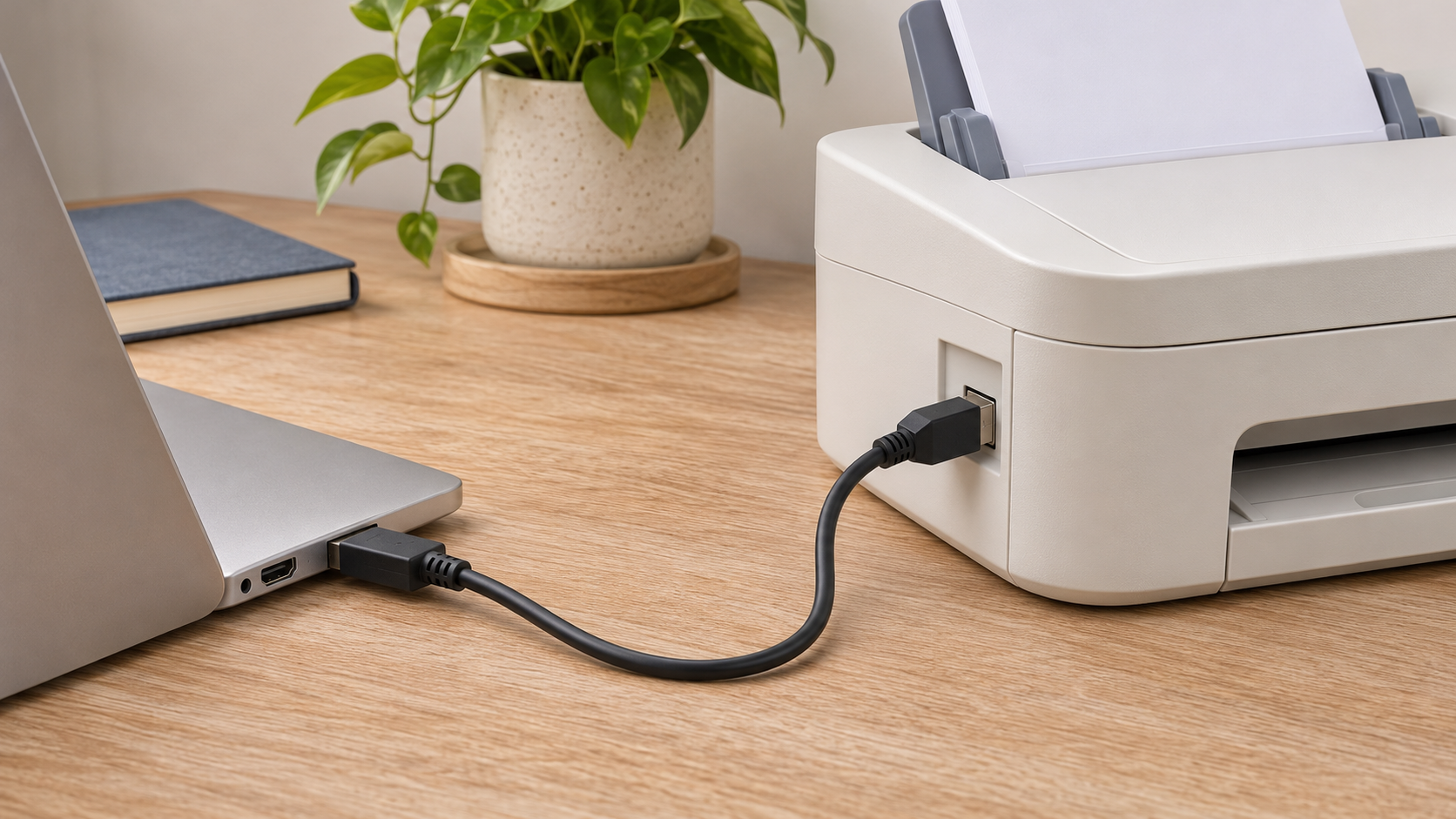
If one nearby computer does all the printing, a direct USB connection may be enough. Where the model supports that arrangement, turn off its unused wireless connections and disconnect Ethernet. Connecting a USB cable by itself does not disable an existing network connection.
Also check whether the computer shares its USB printer with other devices. That is another access route, controlled by the computer's sharing settings. Keep the computer and its printing software updated even when the printer is offline.
For printing from several devices, a local Wi-Fi or Ethernet connection may be more practical. Ethernet removes the printer's need to use Wi-Fi, but it still places the device on a network. Protect it accordingly.
Network separation needs planning. A guest or isolated network can prevent a phone or laptop from discovering and reaching the printer. Do not move it to a guest network and assume household printing will keep working. Use a configuration your router supports, test the required devices, and avoid removing all isolation just to fix discovery. The guide to securing your home Wi-Fi network covers the surrounding router controls.
Keep Printer Services Off the Public Internet
Leave the router's firewall enabled. Review port-forwarding rules and any DMZ setting for entries that expose the printer. If someone previously configured remote printing, establish what those rules do before removing unneeded access.
Do not create an internet-facing port-forwarding rule simply because a phone cannot find a local printer. That discovery problem belongs inside the home network; exposing the printer publicly adds a different access path.
Cloud printing is separate from direct inbound access. A manufacturer's service may let you submit jobs through an online account without a manually forwarded port. Removing a router rule does not necessarily disable that service, and disabling cloud printing does not remove an existing router rule.
If you need to print while away, use a supported service you deliberately enable and understand its account and sharing controls. For a work-managed setup, ask IT to configure the approved method. Avoid copying unfamiliar remote-access instructions into your router.
Review Wi-Fi Direct and Online Features
Wi-Fi Direct lets a compatible phone or computer connect directly to the printer without using your home router. It is distinct from the printer joining your ordinary Wi-Fi network.
Turn Wi-Fi Direct off if you never use it. If you need it, check the model's password and connection-approval options. Choose password-protected or manual approval where offered and replace a weak or shared password. Do not assume your home Wi-Fi password protects this separate connection.
Next, review remote printing, email-to-print, and printer sharing in the manufacturer's account or app. Remove people who no longer need access and disable unused features individually. Protect an online printer account with a unique password and two-factor authentication where available.
Some online features support subscriptions or other services you use. Check their dependencies before disabling them, then verify those services afterward. The goal is to understand each enabled route and keep the ones you have chosen.
Protect the Documents as Well as the Device
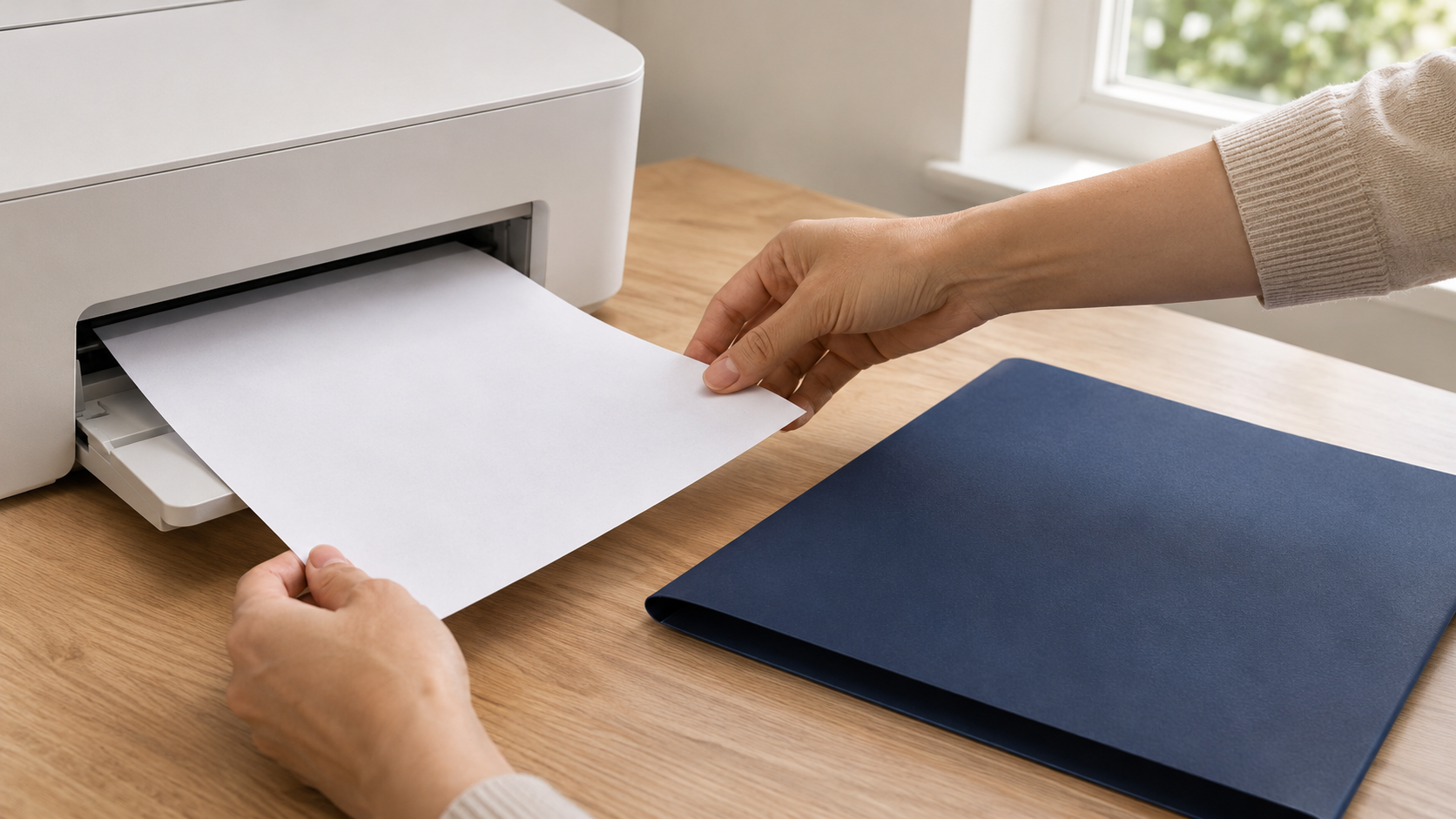
Collect private printouts promptly and check the scanner glass and document feeder after scanning. A protected network does not stop someone reading a statement left in the output tray.
If your model and printing software offer secure print or PIN release, consider using it for sensitive jobs. This holds the job until you release it at the printer. Test with a harmless document first; availability and storage behavior vary by model.
Review saved scan destinations too. Confirm the recipient address, shared folder, or cloud account before sending a document. Remove obsolete destinations through the supported settings. For scans shared online, follow the guide to sharing sensitive files safely so the resulting file has appropriate access controls.
Before selling or recycling the printer, follow its specific reset and data-removal instructions. Stored jobs, address books, network credentials, and cloud registrations may require different cleanup steps. Do not assume switching it off or performing a network reset erases every kind of saved information.
Test the Result and Keep a Short Record
After making changes, check that:
- The installed firmware matches the supported release you intended to apply.
- Protected administrator settings require your credential.
- Every required household device can print a harmless test page.
- Scanning still reaches the intended destination.
- Unused Wi-Fi Direct and online printing features remain disabled.
- Router rules and online sharing lists contain only access you understand.
Restart the printer and repeat the essential print and scan checks. If something fails, revisit the last relevant change rather than restoring every old setting.
Record the model, firmware version, chosen connection method, and date of the review. Recheck after a router replacement, account change, major update, or household handoff. Keep passwords in your password manager, separate from these maintenance notes.