
How to Secure Your Home Wi-Fi Network
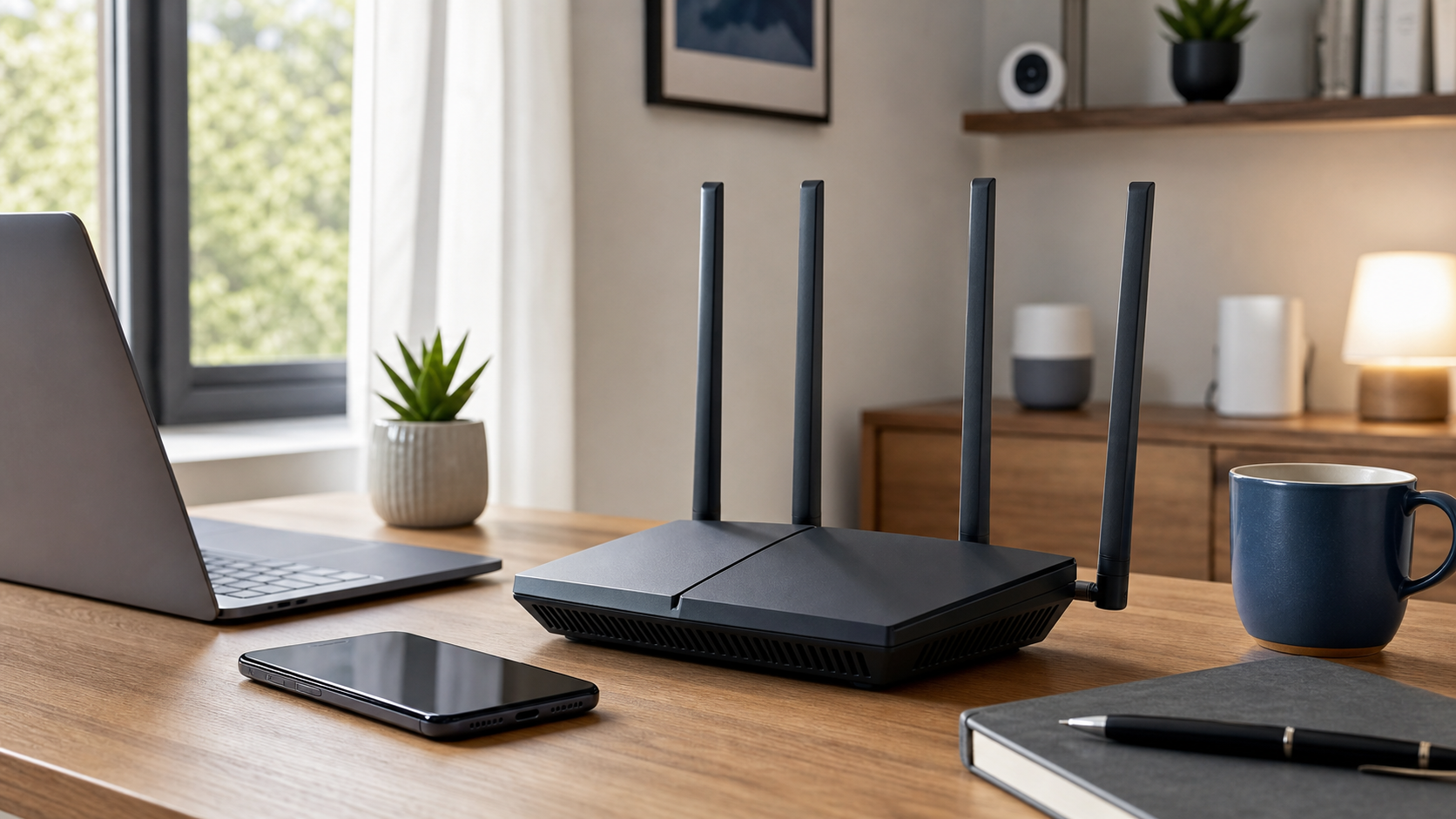
Your router is easy to ignore. It sits on a shelf, works in the background, and connects everything from laptops and phones to cameras, televisions, speakers, and appliances. That makes it one of the most important security devices in your home.
A secure home network does not require expensive enterprise equipment. Most of the work is basic maintenance: update the router, replace default credentials, choose modern Wi-Fi encryption, disable features you do not need, and separate less trusted devices from sensitive ones.
The exact setting names vary by manufacturer, but the principles are consistent. Set aside half an hour, open your router's administration page or app, and work through these steps.
Find Out What Router You Have
Start by identifying the router model, firmware version, and who manages it. You may own the router, or your internet service provider may supply and update it.
Look for a label on the device, then sign in to its local administration page or official management app. Do not search for a random login page and enter the router password there. Use the address printed on the device, the instructions supplied with it, or the gateway address shown in your device's network settings.
Once signed in, record three details:
- The exact model number.
- The installed firmware version.
- Whether automatic security updates are enabled.
If you cannot identify the model or access its settings, contact your internet provider or the manufacturer. You cannot maintain a device you cannot administer.
Update the Firmware First
Router firmware is the software that controls the device. Updates can fix security vulnerabilities, improve stability, and add support for newer standards.
Enable automatic firmware updates if the router offers them. If it does not, compare the installed version with the latest version available through the manufacturer's official support channel. For an internet-provider router, ask whether updates are installed automatically and whether the model is still supported.
Recheck the firmware every few months and after reports of a serious router vulnerability. A router can keep passing traffic long after its manufacturer stops issuing security fixes, so apparent reliability is not proof that it is safe to keep using.
Change Both Router Passwords
Your router usually has two different passwords:
- The Wi-Fi password lets devices join the wireless network.
- The administrator password lets someone change the router's security, network, and internet settings.
Change both if they are still defaults, printed factory values, reused passwords, or anything easy to guess. The administrator password should be unique and should not match the Wi-Fi password. Store it in a trusted password manager rather than relying on a memorable variation. If you need help assessing that tool, follow this guide to choosing a password manager.
Change the default administrator username too, if the router allows it. Then log out of the administration interface when you finish. If the router account supports two-factor authentication through its management app or cloud account, enable it.
Use WPA3 or WPA2 Encryption
Open the wireless security settings and check the encryption mode. Use WPA3 Personal when all important devices support it. WPA2 Personal remains a reasonable compatibility option for older devices. A WPA2/WPA3 transition mode can help while you replace equipment that cannot use WPA3.
Do not use WEP or the original WPA standard. They are outdated. If those are the strongest options after a firmware update, replace the router.
Choose a long, unique Wi-Fi passphrase. It needs to be practical enough to enter on household devices but should not contain your address, family name, router model, or another obvious clue. You do not need to hide the network name. A hidden name is still detectable and does not replace encryption.
Turn Off Unneeded Convenience Features
Several router features trade security for convenience. Review them individually instead of leaving every default enabled.
Remote administration allows the settings page to be reached from the internet. Turn it off unless you have a specific, well-managed reason to use it. Administration should normally be limited to devices already inside your home network.
Wi-Fi Protected Setup, usually called WPS, provides shortcut methods for connecting devices. Disable it when you can connect devices with the Wi-Fi password instead.
Universal Plug and Play, or UPnP, lets devices request network access automatically. Turning it off reduces automatic exposure, but it can affect games, calling tools, and other services. If something breaks, understand which connection it needs before deciding whether to restore UPnP or create a narrower rule.
Also confirm that the router's firewall is enabled. Avoid placing a device in a DMZ or exposing ports to the internet unless you understand the service, restrict it carefully, and keep it patched.
Separate Trusted and Less Trusted Devices
Not every device deserves the same access. Your work laptop, personal computer, storage device, smart speaker, television, camera, and a visitor's phone have different security needs.
Create a guest network for visitors. Use a separate password and enable guest isolation if the router offers it. This keeps guests from needing the primary Wi-Fi password and can limit their access to other local devices.
Consider placing smart-home devices on a separate guest or IoT network, especially cameras, doorbells, speakers, and appliances that receive updates for an uncertain length of time. Keep computers and storage devices containing sensitive data on the primary network.
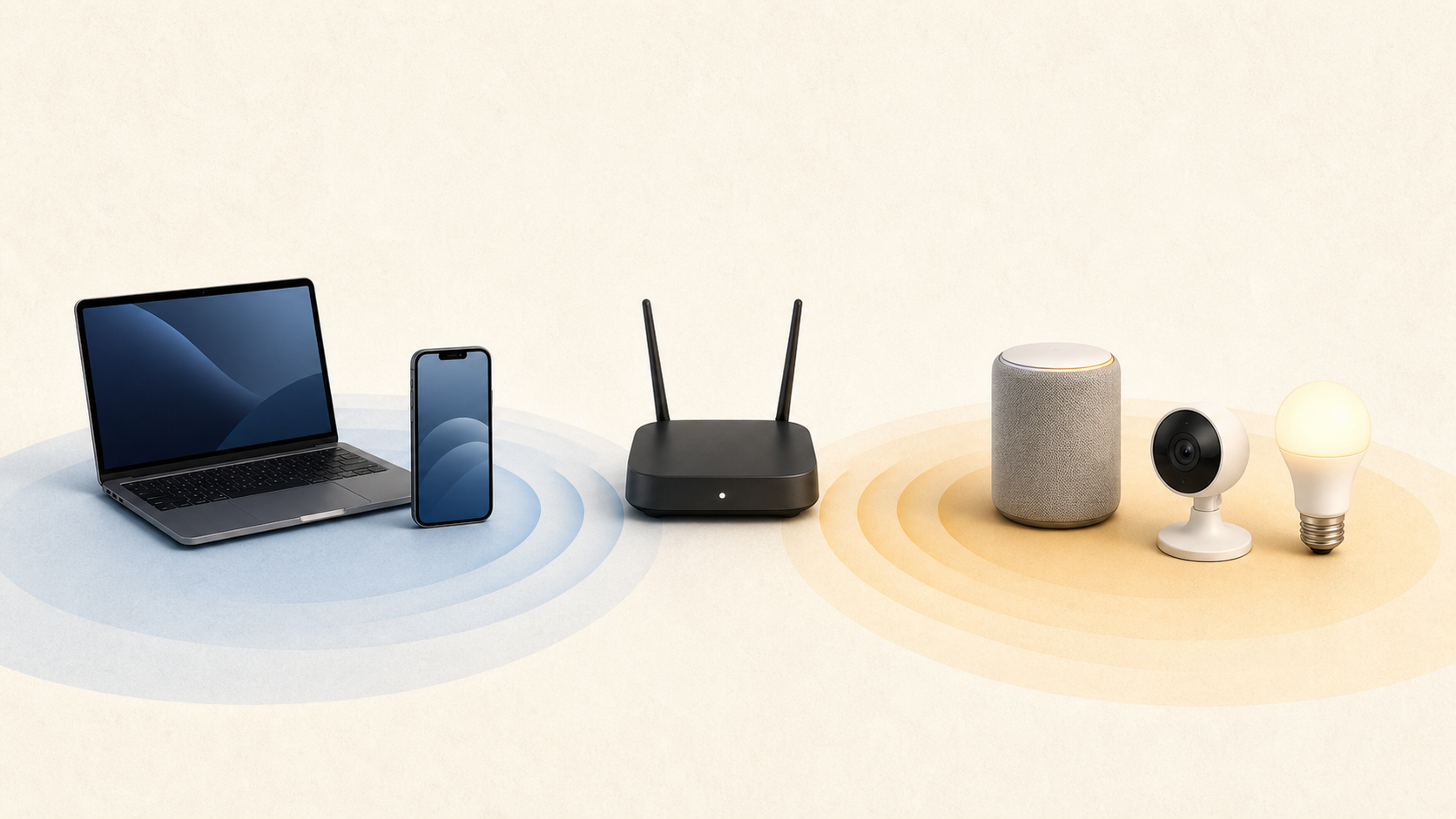
Segmentation does not make an insecure device safe, but it limits what that device can reach. It applies the same access-limiting idea described in zero trust security to a practical home setup.
Review Every Connected Device
Open the router's connected-device list. Depending on the interface, it may be called connected devices, clients, attached devices, or a network map.
Account for every entry. Device names are not always helpful, so compare hardware addresses, temporarily disconnect uncertain devices, or use the manufacturer's identification tools. Remove unknown devices and change the Wi-Fi password if you cannot explain how they connected.
Then review the devices themselves. Install operating system and application updates, remove software you no longer use, enable screen locks, and keep security tools active. Router security is one layer, not a substitute for good endpoint security practices.
Repeat the inventory every few months. It is easy to forget an old tablet, printer, camera, streaming stick, or smart plug that still has network access.
Know What a VPN Does Not Fix
A VPN can encrypt traffic between your device and a VPN server, which may be useful on networks you do not control. It does not update your router, remove an unknown device from your Wi-Fi, replace weak wireless encryption, or isolate a vulnerable camera from your laptop.
Secure the local network first. Then decide whether a VPN addresses a separate privacy or remote-access need. This explanation of what VPNs actually do can help you separate those jobs.
Replace a Router That Is No Longer Supported
A router should be replaced when it cannot receive security updates, supports only obsolete wireless encryption, has known vulnerabilities with no fix, or can no longer meet your basic network-separation needs.
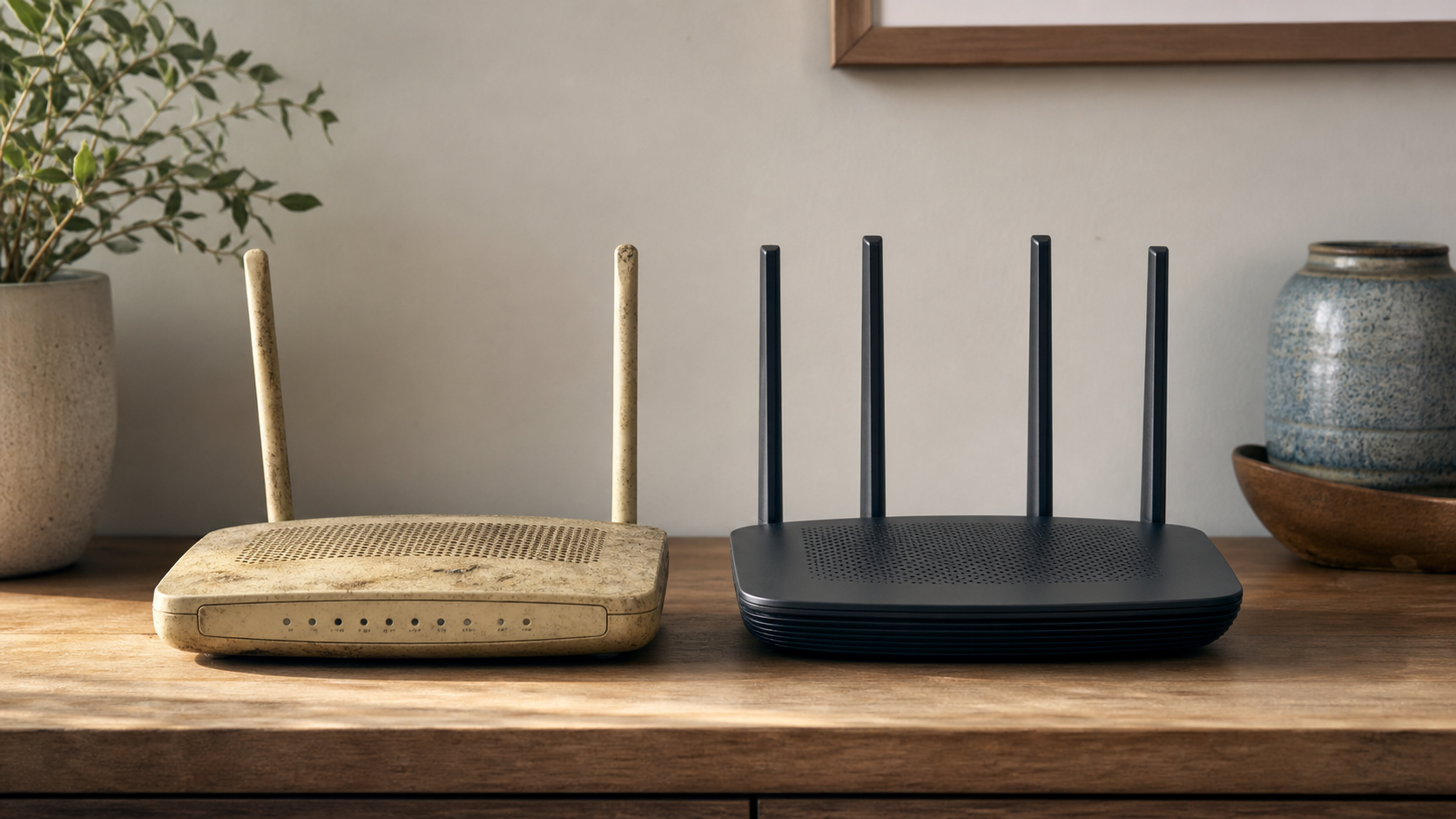
Before buying a replacement, check how the manufacturer handles automatic updates and publishes support information. Look for WPA3 support, a guest network, a built-in firewall, and a clear update policy. More antennas, aggressive styling, and high advertised speed do not tell you how long the device will receive security fixes.
If your internet provider owns the router, ask for a supported replacement rather than buying immediately. If you own it, save only the settings you understand. Importing an old configuration into a new router can carry obsolete choices forward.
A Short Home Wi-Fi Security Checklist
Use this list for the initial cleanup and periodic reviews:
- Identify the router model and support status.
- Install current firmware and enable automatic updates.
- Set unique Wi-Fi and administrator passwords.
- Use WPA3 Personal or WPA2 Personal.
- Disable remote administration and WPS when unused.
- Review UPnP, firewall, port-forwarding, and DMZ settings.
- Create a separate network for guests and less trusted smart devices.
- Account for every connected device.
- Update and secure each device on the network.
- Review the setup every few months.
The Bottom Line
Home Wi-Fi security is mostly about removing unnecessary trust. Do not trust factory credentials, unsupported firmware, every connected device, or convenience features you never chose deliberately.
Start with the router update and the two passwords. Then confirm modern encryption, reduce internet-facing access, separate device groups, and review what is connected. Those steps turn the router from a forgotten appliance into a maintained security boundary for the whole home.