
How to Set Up a Shared Home Computer Safely

Give everyone who regularly uses the computer their own Windows or Mac login. Use standard accounts for everyday work, keep an administrator login for maintenance, and choose a specific place for files everyone needs. Each person can then open the laptop without landing in someone else's inbox or saving a document to the wrong cloud account.
If everyone currently uses the same login, start by making a backup and agreeing which files belong to whom. A shared account often contains a mixture of personal downloads, schoolwork, family photos, and files that sync elsewhere. Sort out what needs to move before you remove anything.
Create a Standard Login for Each Person
An operating system login gives each person their own desktop, home folders, and app settings. It also creates a natural handoff point. Someone can save their work, return to the sign-in screen, and let the next person open their own workspace.
On Windows 11
From an administrator account, open Settings, then Accounts and Other users. Choose Add account. The person can use their own Microsoft account. To set up a local login, choose I don't have this person's sign-in information, then Add a user without a Microsoft account.
After creating the account, select it under Other users and open Change account type to check that it is a Standard User. Have the person sign in and open the apps they need while you are both there. This is a good time to confirm that a printer works or that an app license can be used from the new login.
On a Mac
Open the Apple menu, then System Settings and Users & Groups. Choose Add User, authenticate if prompted, and pick Standard for the account type. Have the new user sign in and set up their own apps and accounts.
Keep at least one working administrator login on either platform. If you plan to change the original account from administrator to standard, first verify that you can sign in to another administrator account and use it to approve a system change. Keep the administrator password available to the person responsible for maintenance.
A standard account can still run harmful software or give a website sensitive information. Treat an unexpected request for administrator approval as a reason to pause. If someone needs a new app, follow the guide to checking a software download before installing it.
Keep Browser and Cloud Sign-Ins With Their Owners
Open the browser from each person's new operating system login. Check the account name shown by the browser before enabling sync. Do the same in the mail app, cloud drive, and password manager. Signing in with the wrong account can bring in another person's bookmarks or send a local file to an unintended cloud folder.
Browser profiles are useful within a personal login. For example, one person might keep separate bookmarks for work and home. Chrome also allows people using the same unlocked operating system login to switch among its profiles. Put regular household users in separate operating system accounts before relying on browser profiles to organize their browsing.
For a visitor who needs the computer beyond a quick search, use a separate standard login without household accounts signed in. Chrome Guest can keep a quick browsing session out of your Chrome profile and clears its browsing activity from the browser when closed. While it is open, the rest of the operating system login remains available. Downloaded files can also remain on disk, so check where anything was saved before handing the computer back.
Move Personal Files and Share the Rest Deliberately
Start with the old account's Desktop, Documents, Downloads, and photo folders. Ask each person which files they need and which are already synced to their own cloud account. Copy personal files to their new home folders, then sign in as the recipient and open a few of the copies. Check that a file shown as a cloud placeholder can actually be opened and copied before counting it as transferred.
Pick one obvious location for material the whole household should be able to open. A printer manual or a copy of a recipe belongs there. Tax returns, identity scans, and personal account recovery information belong in private storage.
Windows has a Public Documents folder under the Public user folder. On a Mac, Finder can open /Users/Shared through Go to Folder. Treat both as places for files other local users can read. Editing and deletion permissions can differ, so use a harmless file to check what each account can actually do before you rely on the folder for collaboration.
When a document should go to one person or needs to be available away from home, use a service that lets you give the intended recipient access directly. The guide to sharing sensitive files without leaving public links behind walks through checking those permissions.
Back Up Each Person's Files and Test a Restore
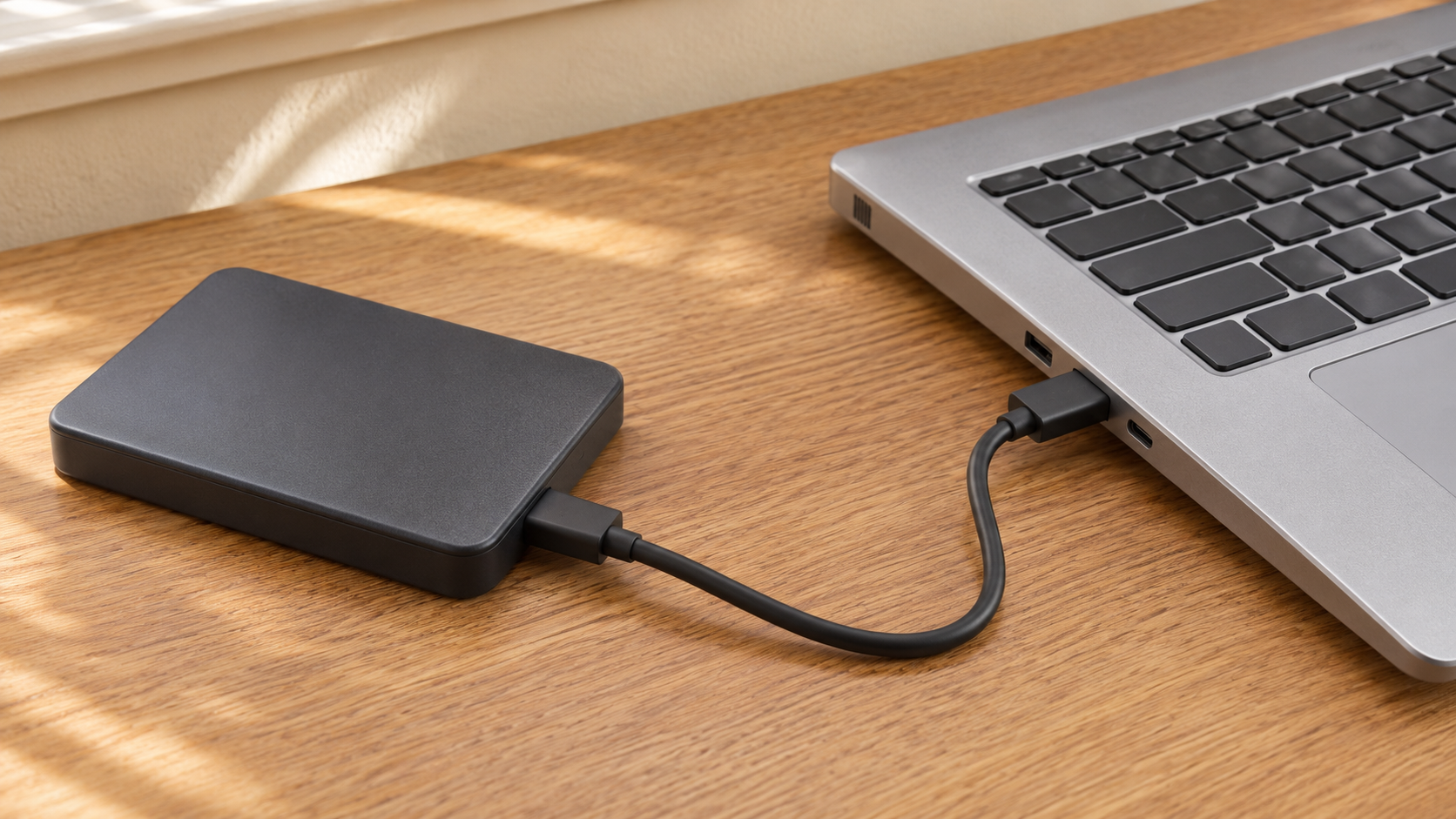
A backup under the original login may miss work saved by new users. List the folders that matter for each person, plus the shared folder, and check them against the backup settings. If an app stores projects somewhere unusual, add that location to the list.
Windows Backup can sync selected folders to OneDrive under a personal Microsoft account. Check whose account is connected and which folders are selected. On a Mac using Time Machine, review the exclusions and confirm that important files are present in the backup. For files stored only in the cloud, verify recovery through that service as well.
Run a small restore before you need one. Save a harmless sample in each person's important folder and one in the shared location. After the backup runs, retrieve the samples without overwriting anything and open them. Note who can perform the restore and where any backup password is stored. If a sample is missing, fix the coverage and test again. The guide to backup strategies that actually work covers keeping a separate copy and checking that you can recover it.
Make the Handoff Routine
Lock the computer when stepping away. Switch users when you need to keep work open and someone else needs a turn. Save and sign out when you are done for the day, especially if the next person needs to restart the computer or run updates.
Before retiring the old shared login, have everyone try a normal task from their own account. Ask them to open a personal file, find a shared file, and confirm the browser and cloud storage show their own account. Keep the old account and its backup until those checks are complete and everyone has confirmed that their files are accounted for.