
How to Verify a Tech Support Request Before Granting Remote Access

Before giving someone remote access to your computer, verify the request through a contact route you already trust. A familiar company name, convincing caller, or genuine support application does not establish who is on the other end.
Remote support can be useful when a technician needs to see a problem or change a setting. It also hands another person access to part of your digital life. The decision should depend on a verified identity, a clear task, and limits you understand.
Use this process for personal devices. For a work or school computer, follow your organization's support and incident procedures, including its rules about approved remote-access tools.
Pause Before Opening the Support Tool
Ask how the interaction began. Did you open a ticket through your usual help desk, arrange a repair with a known provider, or contact a product's support team yourself? An unexpected call announcing an infection needs a different response from a scheduled callback you can independently confirm.
Do not install anything, share a connection code, or accept a screen-sharing request while you are still establishing that identity. An invitation inside a familiar messaging app deserves the same check as a phone call.
A browser page claiming your computer is infected and demanding a support call is a warning sign. Do not use its phone number. Microsoft states that its genuine error and warning messages do not contain phone numbers. A noisy or persistent page is not a diagnosis of your device.
If you are worried about a real problem, leave the unsolicited interaction and contact trusted support yourself. You can investigate without letting the person who raised the alarm choose the investigator.
Verify Through a Separate Contact Route
For work support, open the help desk portal from your established bookmark or call the number in your internal directory. Ask whether the ticket exists, whether remote access is required, and who is assigned to help. Use the normal escalation route if you cannot confirm the request.
For personal support, start from the company's known app, an existing account, or a website you reach independently. Navigate to its support section yourself. Avoid using a number supplied in a suspicious message or choosing a search advertisement simply because it appears first.
Caller ID can be spoofed. A technician's name, ticket reference, or knowledge of your employer is not enough by itself. Treat those details as things to check with the real organization, rather than proof supplied by the caller.
If you cannot verify the request, stop. Write down the issue you actually need solved and arrange a fresh appointment through the trusted channel. Do not let a threat of account closure turn an unverified conversation into a verified one.
Agree on the Task and the Access Needed
Before connecting, ask what the technician plans to inspect or change. A useful explanation should identify the affected application, the expected work, and whether you need to remain present. Confirm any repair charge through the provider's established process before approving it.
Distinguish three kinds of access:
- Screen viewing lets the helper see what you display. Private documents and notifications may be visible even without control.
- Remote control lets the helper operate the computer within the permissions the tool and operating system allow.
- Unattended access can allow later connections without someone accepting each request at the device, depending on its configuration.
Choose the least access that solves the problem. Describing the error or sharing one application may be enough where the tool supports it. In Windows Quick Assist, allowing screen sharing and allowing full control are separate decisions. Its Cancel control option stops control; Leave ends the session.
A genuine, encrypted remote-support tool does not authenticate the person asking you to use it. Verify the helper first, then assess each permission prompt on its own merits.
Prepare the Computer Before Sharing
Close unrelated browser tabs, email, messaging apps, password managers, and private documents. Put paper records away if a camera might be used. Reduce notification previews where practical, and check what is visible on any additional monitors.

Save open work before an expected restart. If troubleshooting involves files, prepare a harmless example where possible instead of exposing a real customer's information or your personal records. Ask before uploading diagnostic logs, since they may contain more than the error message.
Use your organization's approved support software on managed devices. For a personal computer that needs a new tool, follow the guide to checking a software download before installing it. Obtain it through the verified provider's instructions and resolve security warnings before proceeding.
Find the session's disconnect control before approving the connection. Make sure you understand whether closing a window ends access or merely hides the application.
Stay Present and Reassess New Requests
Watch the session and ask the helper to explain changes before making them. If the work expands from one application into account administration, file transfers, or persistent access, pause and confirm why that is necessary.
Keep passwords, recovery codes, and authentication approvals private. If legitimate troubleshooting requires signing into an account, stop sharing and end remote control first. On a device you suspect is compromised, use a different trusted device for sensitive sign-ins.
Do not open online banking at the direction of an unverified helper. Requests to transfer money for protection, buy gift cards, or demonstrate a refund by moving funds are reasons to end the interaction.
Technical output can also be used to create pressure. Routine warnings in a system log do not independently establish an infection. Ask how the evidence relates to your original problem, and seek another opinion if the explanation depends on fear or urgency.
End the Session and Review Lasting Access
When verified support finishes, use the tool's explicit end-session control and confirm that sharing has stopped. Ask for a short record of what changed, what remains unresolved, and whether any follow-up is planned.
Review whether the work added an unattended-access password, device assignment, service, or other persistent connection method. Some tools support later access even when nobody is present to accept a prompt. Ending today's connection and removing future access are separate tasks.
For personal support, remove temporary software and permissions that are no longer needed using the provider's documented process. On managed equipment, ask IT before removing a support agent your organization maintains.
If troubleshooting also connected a service to an online account, review that authorization separately through the steps for auditing apps connected to your accounts. Uninstalling a desktop application does not necessarily revoke its cloud permissions.
If You Already Granted Untrusted Access
End the connection immediately. If you cannot reliably stop it through the tool, disconnect the affected computer from the network: unplug Ethernet and turn off Wi-Fi or other active network connections. Do not reconnect just because the caller asks you to.
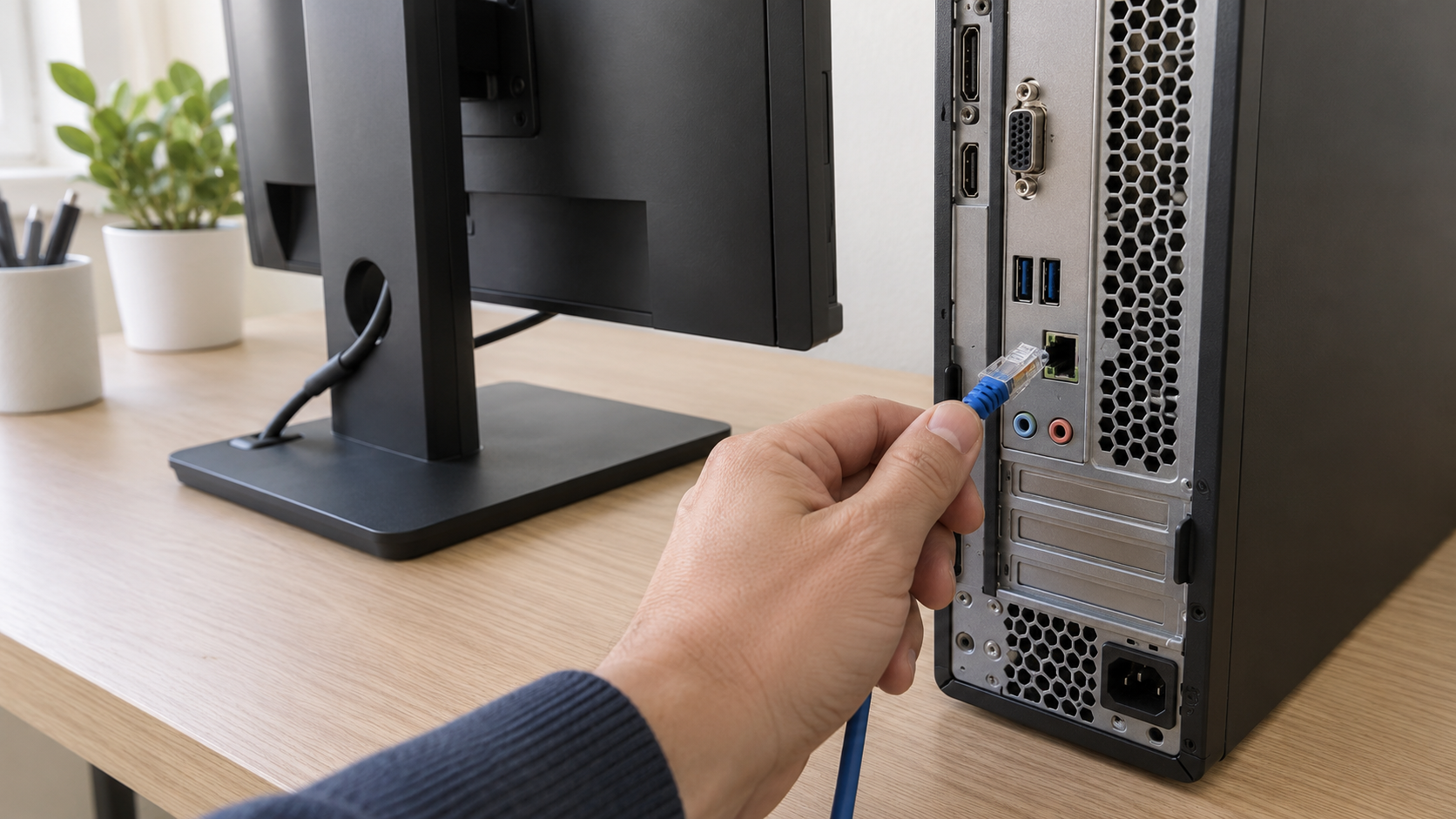
For a work device, contact your security or IT team through a separate trusted device. Report when access began, the software used, what you approved, and any accounts or documents opened. Follow their directions before deleting software or erasing evidence.
For a personal device, get help from a trusted technician to remove unauthorized access and check for other changes. Update security protection and run an appropriate scan as part of that review. Deleting the original installer alone does not undo an installation or prove the computer is safe; a clean reinstall may be needed when trust cannot be restored.
From a different trusted device, secure exposed accounts and review active sessions and recovery settings. If email was involved, follow the guide on recovering a hacked email account. Contact your bank promptly if payment details or banking access were exposed. Keep messages, receipts, and a timeline for reporting through the appropriate local channels.
A Checklist Before You Connect
Proceed only when you can answer these questions:
- Have I independently confirmed the provider, helper, and support request?
- Can I explain the task and why remote access is needed?
- Have I limited access and put unrelated private information away?
- Do I know how to end the session and check for lasting access afterward?
If an answer is missing, pause and resolve it through the trusted support route. Getting help should leave you with a working device and a clear understanding of who had access, what they changed, and when that access ended.